AI Memory & Personal Archive
What Happens to Your Memories When the Cloud Dies
What survives when a photo cloud shuts down? A practical guide to personal archives, exports, local copies, and the risk of renting your memories.
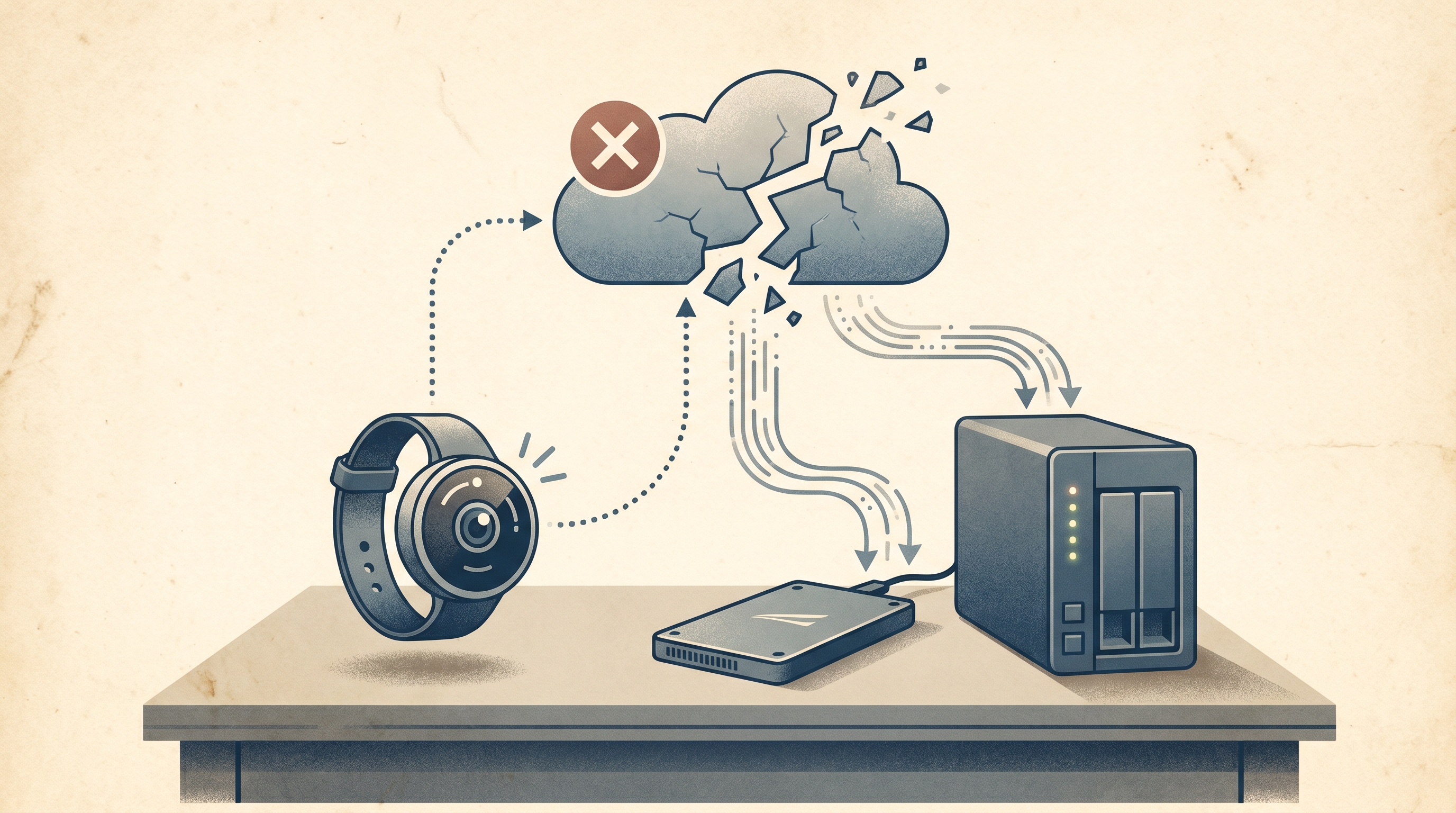
A cloud shutdown personal archive is not a panic project. It is the quiet work of making sure your memories still exist when a product owner changes strategy, runs out of money, or decides that a feature you depended on is now legacy. The original Narrative Clip made that problem concrete: the camera kept taking pictures, but the service that organized them disappeared. The same risk now sits under photo clouds, AI memory apps, voice-note tools, smart glasses, and subscription galleries. This article is not an argument to abandon the cloud. It is an argument to demote the cloud. Use it for sync, sharing, and off-site backup. Do not let it become the only place where your life is understandable.
Why cloud shutdowns matter now
Consumer memory products have become less like folders and more like services. A phone library is a service. A smart-glasses capture flow is a service. An AI journal that turns voice notes into summaries is a service. That service may store the files, the thumbnails, the transcript, the tags, the face clusters, the search index, and the UI that makes the pile feel like a memory.
That last part is the dangerous part. Raw JPEGs and MP4 files are boring, but durable. A proprietary “memory timeline” is delightful until the company stops serving it. The Narrative Clip cloud shutdown is the reason this site keeps returning to that point. Users who exported their photos had something to rebuild from. Users who did not were left with a story about a product they used to trust.
The modern version is subtler. Google, Apple, Meta, and smaller AI memory companies are much larger than Narrative was, but size is not permanence. Products get merged. Free tiers shrink. Account enforcement makes mistakes. Export formats change. AI features that looked like the product can become unavailable behind a region, device, or subscription wall.
Cloud is useful infrastructure. It is not a custody plan. A personal archive should still be readable if the app is gone, the login is broken, and the vendor status page has become a 404.
What to evaluate before trusting a memory cloud
Start with the exit, not the feature list. If a company claims to organize your life, ask how you leave with your files and whether the export includes enough context to make sense later. Google’s official Download your data page exists for this reason: it gives users a route out of Google products. Apple’s Photos & Privacy page is useful for a different reason: it explains which photo features run on-device and how iCloud Photos stores media. Those pages are not substitutes for your own backup, but they are the official starting points.
The evaluation should cover five things:
- Raw file export. Can you get original photos, videos, audio, and documents as normal files?
- Metadata. Do dates, locations, captions, album names, transcripts, and speaker labels survive?
- Portability. Can another app import the result without a custom converter?
- Restore. Can you rebuild the library from the export, or only download a pile?
- Frequency. Is export something you can run monthly, or a one-time emergency escape hatch?
AI memory tools add one more question: where is the intelligence stored? Immich’s official search documentation shows a local-first path where metadata and contextual search can live on hardware you control. That is not as frictionless as a hosted cloud. It is also not dependent on a startup continuing to pay inference bills forever.
Comparison table: cloud memory versus personal archive
| Criterion | Cloud-only memory product | Personal archive workflow |
|---|---|---|
| Day-one convenience | Usually excellent | Slower setup |
| Raw file ownership | Sometimes clear, sometimes hidden behind export | Files are the master copy |
| Search and AI features | Often polished and cloud-backed | Depends on local tools or chosen apps |
| Shutdown risk | High if the cloud is the product | Lower because files remain readable |
| Account lockout risk | Can block access to everything | Local copy remains available |
| Best role | Sync, sharing, off-site copy | Long-term custody |
Affiliate disclosure: This page contains affiliate links. If you buy or sign up through them, NarrativeClip may earn a commission at no extra cost to you. Our recommendations are editorially independent. Read more.
A shutdown-resilient archive workflow
The workflow is deliberately unglamorous. Glamour is how people end up with five dashboards and no restore.
Step 1: Make an inventory
List every place memories currently live: phone camera roll, iCloud Photos, Google Photos, Meta View, Insta360 app, old Dropbox folders, voice memo apps, SD cards, external drives, shared albums, and dead laptops. Do not reorganize yet. The first job is discovery.
For each source, write down the account, device, approximate size, export method, and whether the data is original or derivative. An edited social clip is not the same as the source video. A generated AI narration is not the same as the original voice memo. The archive should preserve both when both matter.
Step 2: Export before you optimize
Run the official export path for each cloud before touching anything. For Google accounts, use Takeout. For Apple, download originals from Photos or ensure the Mac is set to keep originals locally before copying the library. For camera apps, connect the device or card and pull files directly where possible. For voice-note tools, export audio and transcripts separately.
Do not trust a single ZIP just because it exists. Open it. Check older files, recent files, videos, Live Photos, edited copies, and sidecar metadata. The failure mode is rarely “nothing exported.” It is “ninety-seven percent exported and the three percent missing is the part you notice in six months.”
Step 3: Create a plain-file master
The master archive should be a folder tree a normal computer can browse:
Archive/
  Photos/
    2026/
      2026-05/
  Video/
  Voice-notes/
  Exports/
    google-takeout-2026-05/
    icloud-photos-2026-05/
  Derivatives/
    narrated-clips/
This structure will not win design awards. That is the point. Plain folders survive app fashion. Put exports in an Exports folder even if you also normalize files into Photos and Video. The untouched export is evidence; the organized library is the working copy.
Step 4: Add a local backup
Copy the master archive to a second local medium: an external SSD, external hard drive, or NAS. For people with less than 2 TB, a portable SSD is the least painful first step. For larger libraries or multiple family devices, the Storage & Backup hub has NAS and 3-2-1 guides.
The local backup should not be constantly mounted if ransomware risk matters. A monthly cold drive is boring and effective. Plug it in, run the sync, verify a few files, eject it, and put it somewhere else in the house.
Step 5: Add an off-site copy
Off-site can be a cloud backup, a B2 bucket, a trusted family member’s drive, or a NAS at another location. Backblaze’s official Computer Backup documentation describes the simple per-computer route, while B2 is the more technical object-storage route. Either can be useful. Neither should be the only copy.
Step 6: Test restore, not upload
An upload is not proof. A restore is proof. Once a month, pick a file from last year and restore it to a different folder. Open it. Confirm the date and metadata. If you use encrypted backups, confirm that the key is stored somewhere you can actually find.
The practical rule: if a vendor shut down tomorrow, you should know which drive or bucket you would open first, and you should have opened it recently enough to trust it.
Best fit by use case
If your archive is mostly phone photos, start with exports and a local originals policy. Apple users should know whether iCloud Photos is optimizing local storage or keeping originals on a Mac. Google users should run a Takeout export before assuming cloud search equals ownership.
If your archive includes wearable-camera clips, treat the camera app as a transfer tool, not the archive. Pull files to a computer, then organize them with the same folder structure as everything else. The Best Wearable Cameras guide is useful only if the footage lands somewhere durable afterward.
If your archive includes AI voice notes, export both audio and text. Text-only exports are searchable but incomplete; audio-only exports preserve evidence but are harder to use. Keep both, especially if the notes are personal journals or family interviews.
If you are rebuilding after an old shutdown, do not try to recreate the exact lost product. Build a simpler archive from whatever survived. The Clip Story is the cautionary tale; how to build a personal archive is the practical next step.
Join the Memory Tech Brief for ongoing shutdown and archive notes.
Privacy and backup note
A personal archive is not automatically private just because it is local. The files may include faces, voices, locations, school names, medical context, and people who never agreed to become searchable. Use encryption for portable drives. Use separate folders for especially sensitive material. Do not upload raw family archives into every new AI tool that promises magic search.
The anti-cloud position is too simple. The better position is anti-single-point-of-failure. Local files, local backup, off-site backup, and readable exports. That is the boring architecture that keeps memories alive after the brand name changes.
Internal reading map
Frequently asked questions
What is a cloud shutdown personal archive plan?
It is a way to make sure the important copy of your photos, clips, notes, and metadata lives outside any single cloud product. The plan usually includes regular exports, a local master folder, at least one external backup, and one off-site backup.
Can Google Takeout or iCloud export everything perfectly?
They are useful exits, not guarantees. Google Takeout can export your Google data, and Apple documents how iCloud Photos stores libraries across devices, but you still need to verify downloaded files, metadata, album structure, and restore behavior before trusting an export.
Should I delete cloud copies after exporting?
Not immediately. Keep the cloud copy until you have opened the export, checked a sample of files, copied it to local storage, and backed it up elsewhere. A rushed deletion turns an export mistake into data loss.
What is the safest first step this week?
Export one service, store the result on an external SSD, and open random files from different years. Then add a second copy before you start reorganizing anything.