AI Memory & Personal Archive
How to Build a Personal Archive That Survives Product Shutdowns
Build a personal archive that can outlive apps, startups, cloud shutdowns, and bad exports with a local-first workflow you can actually maintain.
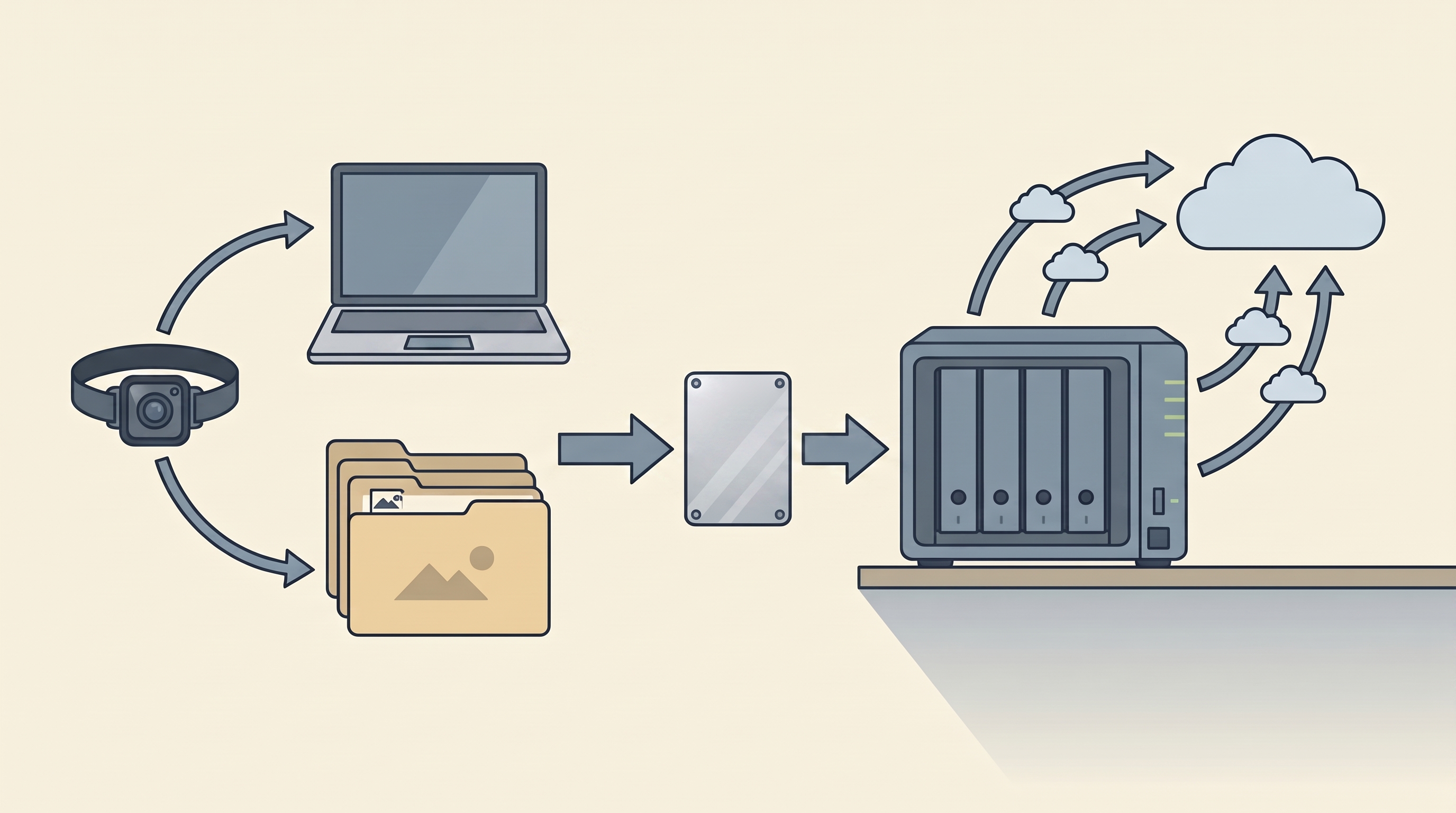
This is a practical answer to how to build a personal archive when your memories are scattered across phone libraries, old clouds, wearable-camera apps, voice notes, and half-forgotten exports. The goal is not a museum-grade digital preservation system. The goal is a durable household archive that survives product shutdowns, account lockouts, app redesigns, and the slow disappearance of services you once trusted. The archive should be boring enough that you can maintain it on a tired Sunday. It should use files other tools can read. It should have more than one copy. It should make room for AI search and narration without letting AI tools become the only keeper of the record. Start with custody, then add convenience for real households.
Why personal archives matter now
The old version of a personal archive was a box of photos and tapes. The new version is worse and better. Better, because files can be copied perfectly and searched. Worse, because many of those files are hidden inside services that were designed for engagement, not preservation.
The original Narrative Clip is the clean cautionary tale. Its hardware captured photos; its cloud made them feel organized. When the cloud shut down, exported JPEGs were still useful, but the proprietary timeline was gone. That distinction now applies everywhere. A cloud photo app can recognize people. A voice-note service can summarize your week. A smart-glasses app can import quick POV clips. An AI memory tool can make a searchable transcript. Useful, yes. Permanent, no.
The point of a personal archive is to separate the record from the interface. The record is the file, transcript, date, location, caption, and consent context. The interface is whatever app happens to make that record pleasant this year. If the interface dies, the record should remain.
That is why a local-first archive does not reject software. It gives software a lower rank. Files first. Tools second.
What to evaluate before building
Evaluate inputs before hardware. A NAS will not fix a messy export if you do not know what you are importing.
For photo libraries, confirm where originals live. Apple’s official Photos & Privacy page explains that Photos uses on-device machine learning for many personalized features, while iCloud Photos stores media in iCloud when enabled. That means an Apple library can be very private in analysis and still cloud-dependent in storage if local originals are not present.
For Google libraries, use Google’s official Download your data process before you make assumptions. Takeout exports can be large, split into many archives, and messy around sidecar metadata. That does not make them useless. It means you verify before deleting anything.
For self-hosted photo libraries, read the tool’s actual scope. Immich’s search documentation shows powerful contextual search, face filters, metadata filters, and OCR, but it is still software you run and maintain. Synology’s official Synology Photos specifications describe automatic albums, face recognition, and object recognition, but those features depend on compatible NAS hardware and package support.
The archive should answer:
- What is the untouched source export?
- What is the normalized working copy?
- What app reads the working copy today?
- What happens if that app is gone?
- Where are the second and third copies?
Comparison table: simple archive stacks
| Stack | What you buy | Good for | Weak spot |
|---|---|---|---|
| External SSD only | 2-4 TB portable SSD | First archive, small library, low budget | Easy to forget or lose |
| SSD plus cloud backup | SSD + Backblaze or similar | Laptop-centered households | Cloud restore must be tested |
| Two-bay NAS | NAS + mirrored drives | Family archive, Immich, shared access | More setup and maintenance |
| NAS plus object storage | NAS + B2/Wasabi/restic | Large video archives | Technical, key management matters |
Affiliate disclosure: This page contains affiliate links. If you buy or sign up through them, NarrativeClip may earn a commission at no extra cost to you. Our recommendations are editorially independent. Read more.
Step-by-step archive workflow
1. Freeze the sources
Before reorganizing anything, freeze the sources. Export Google Photos. Download iCloud originals. Copy SD cards. Pull media from camera apps. Export voice notes as audio. Export transcripts as text where available. Save each export in a dated folder and do not edit it.
This protects you from your own cleanup. People lose data by tidying too early. The raw export is the thing you can return to when a deduplication tool makes a bad decision.
2. Create a folder contract
Pick a folder structure simple enough to remember:
Personal-Archive/
  00-Exports/
  10-Photos/
  20-Video/
  30-Audio/
  40-Documents/
  50-Projects/
  90-Derivatives/
The numbers are not magic. They keep folders in order. 00-Exports is untouched. 10-Photos through 40-Documents are the usable archive. 90-Derivatives is for edited videos, AI narration, resized exports, transcripts generated later, and anything that should not replace the original.
3. Normalize without erasing
Move copies into the working folders by year and month. Do not strip metadata. Do not convert everything “for consistency” unless a format is genuinely unreadable. HEIC, JPG, DNG, MOV, MP4, WAV, MP3, TXT, MD, PDF, and CSV are all acceptable archive formats for normal households.
If you use tools to merge Google Takeout sidecars, keep the original Takeout folder. If you use AI to transcribe audio, keep the audio and the transcript. If you use ElevenLabs or Descript to make a narrated memory clip, keep the source clip, script, project export, and final video.
4. Add search after custody
Once the files are stable, choose a search layer. Apple Photos is good for Apple households. Immich is the local-first favorite for people willing to run a server. Synology Photos is fine for NAS users who want less tinkering. Obsidian is useful for text notes and transcripts. None of these tools should be the only place the archive exists.
The model is “index the archive,” not “become the archive.” If you can delete the search app and still browse folders, you are doing it right.
5. Back up with the 3-2-1 rule
Three copies, two media, one off-site. A practical version:
- Working copy on laptop, desktop, or NAS.
- Local backup on an external SSD or second drive.
- Off-site copy in cloud backup, object storage, or a drive stored elsewhere.
Backblaze’s official B2 documentation is relevant if you are comfortable with object storage and tools like restic or rclone. For simpler laptop backup, use a consumer backup tool. For large families, see the Storage & Backup hub.
6. Write a README
Every archive needs a README.txt at the root. Include:
- What this archive contains.
- What folders mean.
- Where backups live.
- Which tools can open the library.
- How to restore.
- Password manager entry names for encrypted backups.
This is not overkill. It is a note to your future self, or to the person helping your family recover files when you are not available.
7. Test restores
Once a month, restore three random things: one old photo, one video, one document or transcript. Open them on a different device. If you cannot do that, you do not have a backup. You have a ritual.
Best fit by use case
For a small personal photo library under 1 TB, start with a portable SSD and a cloud backup. Do not buy a NAS until the problem has outgrown simpler tools.
For wearable-camera users, sort by capture date and device. A camera like the Insta360 GO 3S generates many short clips that need culling. Keep originals, but move keepers into monthly folders quickly or the backlog becomes hostile.
For families, prefer a shared NAS or shared computer folder plus clear permissions. A family archive is partly a technical system and partly an agreement about what belongs in it.
For AI memory users, export text. Searchable transcripts are often more useful than the original audio for day-to-day retrieval, but the audio is still the record. Keep both. Then read Best AI Memory Tools for Searchable Voice Notes for the software layer.
Privacy and backup note
Personal archives contain other people. That is the part backup guides often ignore. Before indexing every face and transcript with AI, decide what should remain private, what should be encrypted, and what should not be uploaded at all. A local-first archive gives you control, but control includes restraint.
The final test is simple: if a cloud shuts down, can you still open the files? If a laptop dies, can you restore them? If an app changes, can another app read them? Build until the answer is yes.
Internal reading map
- Storage & Backup
- Best Lifelogging Cameras
- AI Memory Tools
- The Clip Story / Cloud Shutdown
- Memory Tech Brief
Frequently asked questions
How do I build a personal archive from scattered cloud services?
Start by exporting each service without reorganizing it. Keep the untouched exports, create a plain folder master, normalize only the files you actually need to use, and back up the result locally and off-site.
What file formats should a personal archive use?
Use ordinary formats wherever possible: JPG, HEIC, PNG, DNG, MP4, MOV, WAV, MP3, TXT, MD, PDF, and CSV. Proprietary project files are fine as extras, but they should not be the only readable copy.
Do I need a NAS?
Not at the beginning. A NAS becomes useful when the archive is shared across devices, grows past a few terabytes, or needs automated services like Immich. A good external SSD is enough for many first archives.
How often should I update the archive?
Monthly is realistic for most people. Weekly is better for active creators. The cadence matters less than restore testing: pick files at random and prove you can open them from backup.