Storage & Backup
Best Storage and Backup Stack for Lifelogging Photos and Clips
A practical storage and backup stack for lifelogging photos and clips: SSD, NAS, cloud backup, object storage, exports, and restore tests at home.
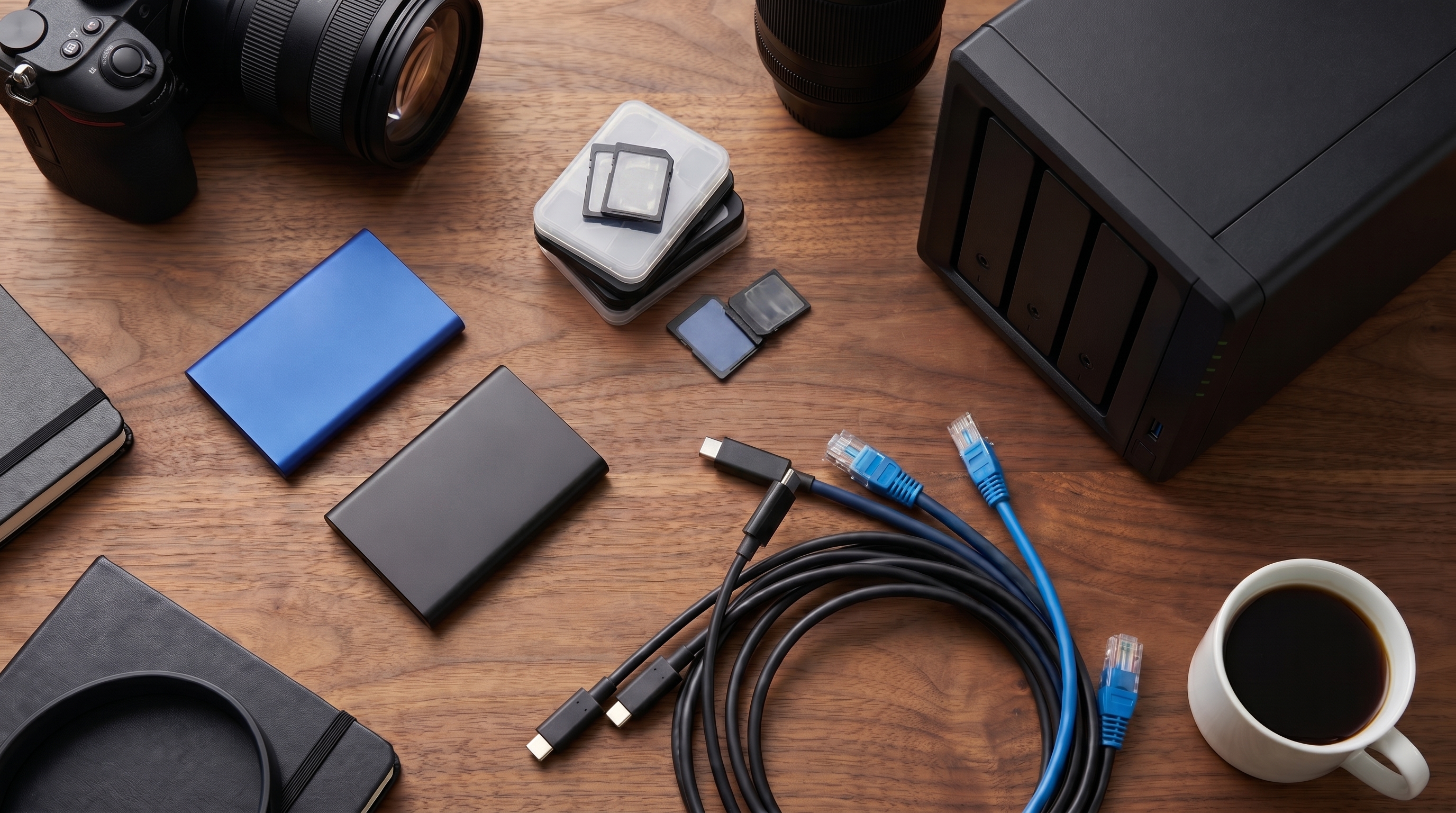
The best storage for lifelogging is not a single product. It is a stack: capture media, working storage, local backup, off-site backup, and a restore habit. Wearable cameras make this problem urgent because they produce a lot of small files and clips that are easy to ignore until the trip, month, or year is over. Then the archive is suddenly too large for a laptop and too personal to trust to one cloud. This guide is deliberately practical. It does not recommend cloud-only storage. It does not pretend a NAS is mandatory on day one. It ranks storage stacks by the kind of lifelogger you are: casual, travel-heavy, family archivist, creator, or local-first obsessive. The winning setup is the one you will actually maintain.
Why lifelogging storage matters now
Lifelogging creates an unusual storage profile. It is not one photo shoot. It is a steady drip of daily files. A smart-glasses clip here, an Insta360 sequence there, phone photos, voice notes, transcripts, edited memory videos, and exported app data all accumulate into an archive that feels small until it is not.
The cloud makes the accumulation invisible. That is convenient until you need to leave, restore, or prove you have the originals. The Narrative Clip’s failure remains the clean lesson: if the organizing cloud is the only place the memory makes sense, the archive is fragile.
Storage has also become cheaper and more confusing. External SSDs are fast enough for working libraries. NAS boxes are friendly enough for households. Backblaze documents unlimited computer backup for attached drives, while B2 offers S3-compatible object storage for people who want more control. Synology Photos and Immich can make local archives searchable. None of that removes the need for a plan.
The right plan is not “buy the biggest drive.” It is “know which copy is the master, which copy is local insurance, which copy is off-site, and how to restore.”
What to evaluate before buying
Evaluate volume first. A photo-heavy lifelogger may fit years into 2-4 TB. A video-heavy creator can burn that in months. Use our storage calculator before buying hardware.
Evaluate file access next. Do you need the archive on one laptop, every family device, or a self-hosted app? A portable SSD is excellent for one person. A NAS is better for multi-device access and local AI photo tools. Synology’s official DS224+ page is a useful example of the modern starter NAS category. Synology Photos’ official specifications describe face and object recognition, chronological browsing, and mobile access.
Evaluate off-site posture. Backblaze’s Computer Backup documentation describes unlimited backup for a computer and physically connected drives. Its B2 Cloud Storage documentation covers the object-storage path. Those are different products. Pick the one that matches your tolerance for setup.
Evaluate drives. NAS drives should be CMR-oriented NAS models, not mystery bargain disks. Western Digital’s official WD Red Plus data sheet is one example of the boring spec sheet you actually want to read.
Comparison table: storage stacks ranked
| Rank | Stack | Best for | Approx. complexity | Failure mode |
|---|---|---|---|---|
| 1 | Portable SSD + cloud backup | Beginners and travel archives | Low | SSD loss before backup |
| 2 | Two-bay NAS + external cold drive + cloud | Family archives and local AI search | Medium | NAS misconfiguration |
| 3 | NAS + restic/rclone to B2 | Large local-first libraries | High | Lost encryption keys |
| 4 | Laptop originals + Backblaze | Simple one-computer households | Low | External-drive disconnect habits |
| 5 | Cloud sync only | Sharing convenience | Low | Deletes sync everywhere |
Affiliate disclosure: This page contains affiliate links. If you buy or sign up through them, NarrativeClip may earn a commission at no extra cost to you. Our recommendations are editorially independent. Read more.
Ranked backup stacks and workflow
1. Portable SSD plus cloud backup: best first stack
This is the stack most people should build first. Keep the working library on a laptop or desktop. Copy originals to a 2-4 TB portable SSD every week or month. Back up the computer and the attached archive drive with a cloud backup service. The advantage is that you can start today without learning NAS administration.
The weak spot is habit. The SSD must be connected long enough to update, and the cloud backup must see it often enough to keep it protected. This stack works when the archive is still human-scale and one person is responsible.
2. Two-bay NAS plus cold drive plus cloud: best household stack
Once the archive is shared across devices, buy a two-bay NAS and mirrored drives. The NAS becomes the working library. An external USB drive becomes the local cold backup. Cloud backup or object storage becomes the off-site copy.
This is the best balance for families. It supports phone imports, laptop access, local photo apps, and clearer custody. The NAS is not the backup by itself. A mirror protects against one drive failing. It does not protect against deletion, ransomware, theft, fire, or a bad sync. That is why the cold drive and off-site leg remain mandatory.
3. NAS plus restic or rclone to B2: best local-first power stack
This is the stack for people who want control and can manage keys. The NAS holds the library. Restic, rclone crypt, Arq, Duplicacy, or Borg encrypts snapshots and sends them to Backblaze B2 or another object store. The cloud sees ciphertext. You control the restore path.
The weak spot is not storage. It is key management. If you lose the encryption password, the backup is decorative. Store recovery details in a password manager and a sealed offline note.
4. Laptop originals plus Backblaze: best simple computer stack
If your archive lives on one computer and one attached external drive, Backblaze Personal-style backup is attractive because it removes per-gigabyte anxiety. The official docs say the service covers unlimited data on the computer plus physically connected internal and external drives, subject to product rules.
This is not a NAS backup. It is not an object-storage tool. It is a simple backup layer for a simple setup. That is fine if your setup is actually simple.
5. Cloud sync only: useful, but not an archive
Dropbox, iCloud Drive, Google Drive, and OneDrive are good sync tools. They are not enough as the only storage for lifelogging. Sync propagates mistakes. Deletes, corruptions, and accidental reorganizations can travel faster than you notice. Use sync for access and collaboration. Keep a separate backup.
Day-one setup
The first day should be boring. Create one master folder, copy one month of files into it, and back up that folder twice. Do not spend the first weekend designing the perfect folder taxonomy. A workable archive beats an elegant empty one.
For a portable-drive stack, format the SSD with a file system your main computer can read reliably, then create Archive, Exports, and Restore-Test folders. Copy the first batch, eject the drive, reconnect it, and open files from different dates. This catches cable, port, and file-system mistakes early.
For a NAS stack, create one shared folder for the archive and one separate backup task. Do not let every phone and laptop dump files directly into the root. Use intake folders, review them, then move keepers into the archive. A NAS makes it easy to centralize chaos. The goal is centralizing custody, not mess.
Monthly routine
Once a month, run three checks. First, import new camera and phone files into the working library. Second, update the local backup. Third, restore one random file from the off-site copy. If the off-site copy is encrypted, perform the restore on a machine that does not already have the archive mounted.
Keep a tiny text log:
2026-06-01 imported May files, SSD backup complete, restored 2025-11-03 clip from B2The log is not bureaucracy. It is proof that the system still works. When a drive starts failing or a cloud credential breaks, the missed routine is the warning light.
What to avoid
Avoid mixing sync and backup in your own head. A folder that syncs to the cloud is convenient, but it may sync a deletion or corruption too. Avoid unnamed external drives. Label the drive physically and in the file system so you know which one is the archive copy. Avoid buying a NAS and then never configuring alerts. A silent NAS failure is just a slow data loss machine.
Also avoid relying on a single giant drive with no second copy. Large drives feel permanent because they hold everything. They are still one device, on one shelf, with one power supply and one bad-luck surface. A stack exists to make any one failure survivable.
The quiet killer is partial failure. A drive may mount but throw errors. A cloud backup may look current but skip an excluded folder. A NAS may run but fail to send alerts because email settings changed. That is why the monthly restore test matters more than any brand name in this article.
Trust the restore, not the dashboard or status badge.
Best fit by use case
For a casual lifelogger, buy a portable SSD and set a monthly calendar reminder. Export phone and camera media, copy it to the SSD, and make sure the computer or drive is backed up off-site.
For a travel-heavy shooter, carry two small SSDs or one SSD plus enough cards to avoid overwriting during the trip. At home, fold the trip into the master archive.
For a family archive, build the two-bay NAS stack. It makes access less dependent on one person’s laptop and gives the family a shared place to import and review.
For creators, go straight to NAS plus object storage if 4K clips are constant. The setup cost is real, but so is the cost of losing source footage.
Privacy and backup note
Encrypt portable drives. Encrypt cloud backups. Store recovery keys somewhere other than your own memory. Keep sensitive folders separate so you can choose which tools index them. Local AI search is useful, but it should not scan every family document by default.
For more detail, read Best Cloud Storage, NAS vs Cloud, 3-2-1 Backup, Compare Cameras, and the Memory Tech Brief.
Frequently asked questions
What is the best storage for lifelogging?
The best storage for lifelogging is a local master copy plus two backups: one local external drive or NAS copy, and one off-site copy through cloud backup or object storage. A cloud-only library is not enough.
Do I need a NAS for lifelogging photos?
A NAS is useful once the archive passes a few terabytes, needs shared family access, or runs tools like Immich. Beginners can start with a large external SSD and a cloud backup.
How much storage do lifelogging clips need?
Photo-only lifelogging may consume hundreds of gigabytes per year. 4K video can consume tens of gigabytes per hour. Build the stack around your actual capture habit, not a marketing estimate.
What should I test in a backup stack?
Test restore speed, metadata preservation, encryption keys, deleted-file recovery, and whether a random file from last year opens on a different device.